Associating files with URLs on Ubuntu (Gnome) - a quick hack
You just downloaded a file from the Internet, for ex, a PDF, a word document from , or a video from or a talk from . You downloaded this file some days back and now, when you viewed it and wanted t...
You just downloaded a file from the Internet, for ex, a PDF, a word document from Google Docs, or a video from TED or a talk from Google Videos. You downloaded this file some days back and now, when you viewed it and wanted to know what the world is talking about it, you don’t remember where you downloaded it from and end up searching for the filename or something related to it in Google.
How many times has this happened to you? How nice would it be if it was possible to associate the file with the URL from where you downloaded it or the page associated with it?
I felt the need for this when I downloaded a lot of TED videos recently and wanted a way to go to the TED page describing the video.
I started searching for the quickest way to do it and I found out a quick way to create context menus in Gnome using Nautilus Actions. So all I had to do was to create 2 commands - one for associating the URL and the other to launch the URL. Did you know it is very simple to create contextual commands in Ubuntu Gnome?
-
Create a directory to store your scripts in. I have it at:
~/scripts/. -
We now create a script called
url.pyto associate the file with the URL. Create a file namedurl.py. Place it in~/scripts/with the following content:#!/usr/bin/python import commands import os import sys input_file = sys.argv[1] url = commands.getoutput( "zenity --entry --title='Enter the URL' " "--text='Enter the URL to be associated with %s' 2> /dev/null" % input_file ) URL_DIR = os.getenv("HOME") + "/urls/" filename = URL_DIR + "file-web.urls" try: os.makedirs(URL_DIR) except OSError: print "Directory already exists" with open(filename, "a") as mapping: mapping.write("%s ::: %s\n" % (input_file, url)) -
Create a second script,
web.py, to launch the URL associated with the file. Place it in~/scripts/with the following content:#!/usr/bin/python import os import sys import urllib home_dir = os.getenv("HOME") with open(home_dir + "/urls/file-web.urls", "r") as handle: lines = handle.read().split("\n") opened = False for line in lines: parts = line.split(":::") print parts[0] == sys.argv[1] if parts[0].strip() == sys.argv[1]: os.system("/usr/bin/firefox " + parts[1].strip()) opened = True if opened is False: parts = sys.argv[1].rsplit("/", 1) os.system("/usr/bin/firefox http://google.com/search?" + urllib.urlencode({"q": parts[1].strip()})) -
Set the permissions on both these files to be executable:
chmod +x ~/scripts/url.py ~/scripts/web.py. -
This script stores the file-to-URL mappings in
file-web.urls. Ensure the directory~/urlsand the mapping file exist:mkdir -p ~/urls touch ~/urls/file-web.urls -
The scripts make use of
zenityto prompt for URLs. Verify it is installed:zenity --infoIf it is not installed, run:
sudo apt-get install zenity -
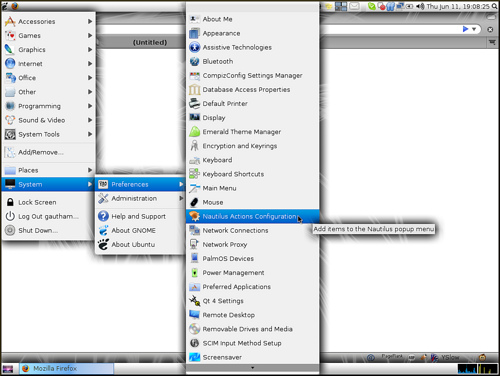
We now create the menu items. Go to System -> Preferences -> Nautilus Actions Configuration
-
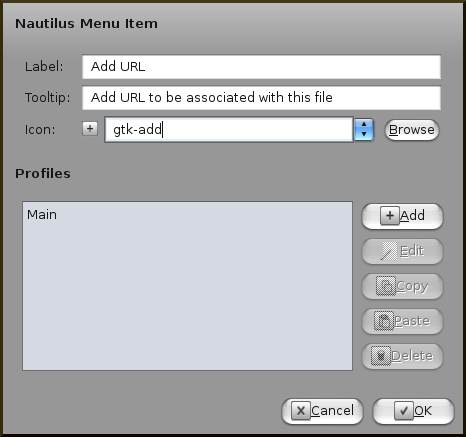
In the Nautilus Actions dialog, click on Add and enter the following values: Label: Add URL Tooltip: Add URL to be associated with this file Icon: gtk-add
-
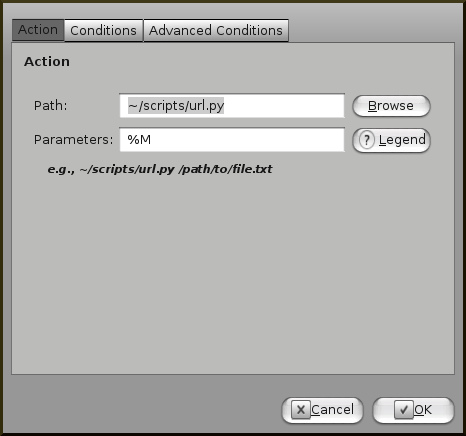
In the Profiles section, Click on Main and click Edit. In the section: Actions, click Browse and select the script ~/scripts/url.py. In parameters, enter %M.
-
Similarly, create a new Nautilus Action item called Web by clicking Add and adding the following values: Label: Web Tooltip: Get info from the web for this file! Icon: gtk-connect
-
In the Profiles section, Click on Main and click Edit. In the section: Actions, click Browse and select the script ~/scripts/web.py. In parameters, enter %M.
-
Now right click a file and you should see the 2 new menu items - Add URL and Web.
-
Select Add URL and it should show up a dialog to enter a URL. Enter the URL to associate the file with.
-
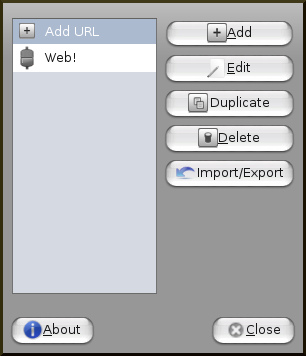
After adding the 2 menu actions, this is how your dialog should look:
-
Now whenever you want to open the web URL, you can just right click the item and select ‘Web’!
This script was a quick hack and so it makes use of a simple file to store the file to URL mapping. You could as well use a Berkeley DB to store the URL’s and provide ways to disassociate URL’s. You can also think of directly extracting the data from the page and showing it in some kind of popup. Now how’s that for a quick hackathon project?